Of course, I am aware that Windows 11 is not an HCL-supported operating system for the Domino or Traveler Server.
Windows operating systems supported by HCL for Traveler 14.0.x ( link ):
Windows Server 2019 Standard and Datacenter Editions | Running Domino 10.0.1 fp2 and higher |
Windows Server 2022 Standard and Datacenter Editions | Running Domino 12.0.1 and higher. Traveler 12.0.1 and higher |
Nevertheless - for example, I use Windows 11 VMs for my online courses and wanted to install the Traveler Server on this operating system.
Hint
Domino Server 14 can be installed on Windows 11 without any problems. However, the installer displays a message that this is an unsupported operating system.
What exactly is it about?
When you try to install Traveler 14 on Windows 11, the following error message appears after a short wait:
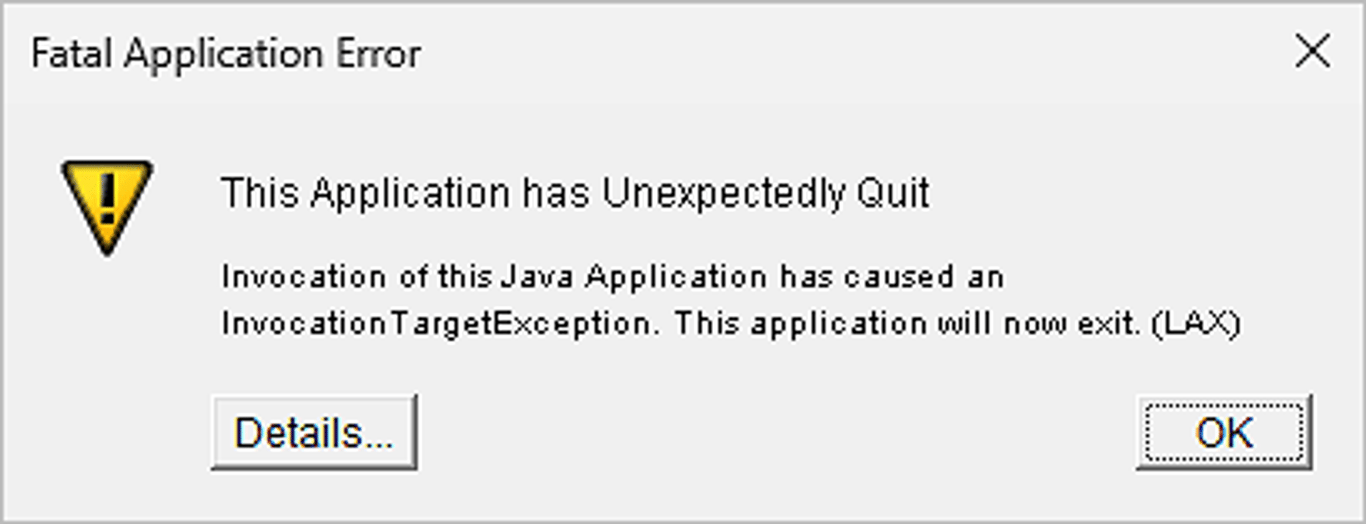
After clicking on "Details" further information will be displayed:
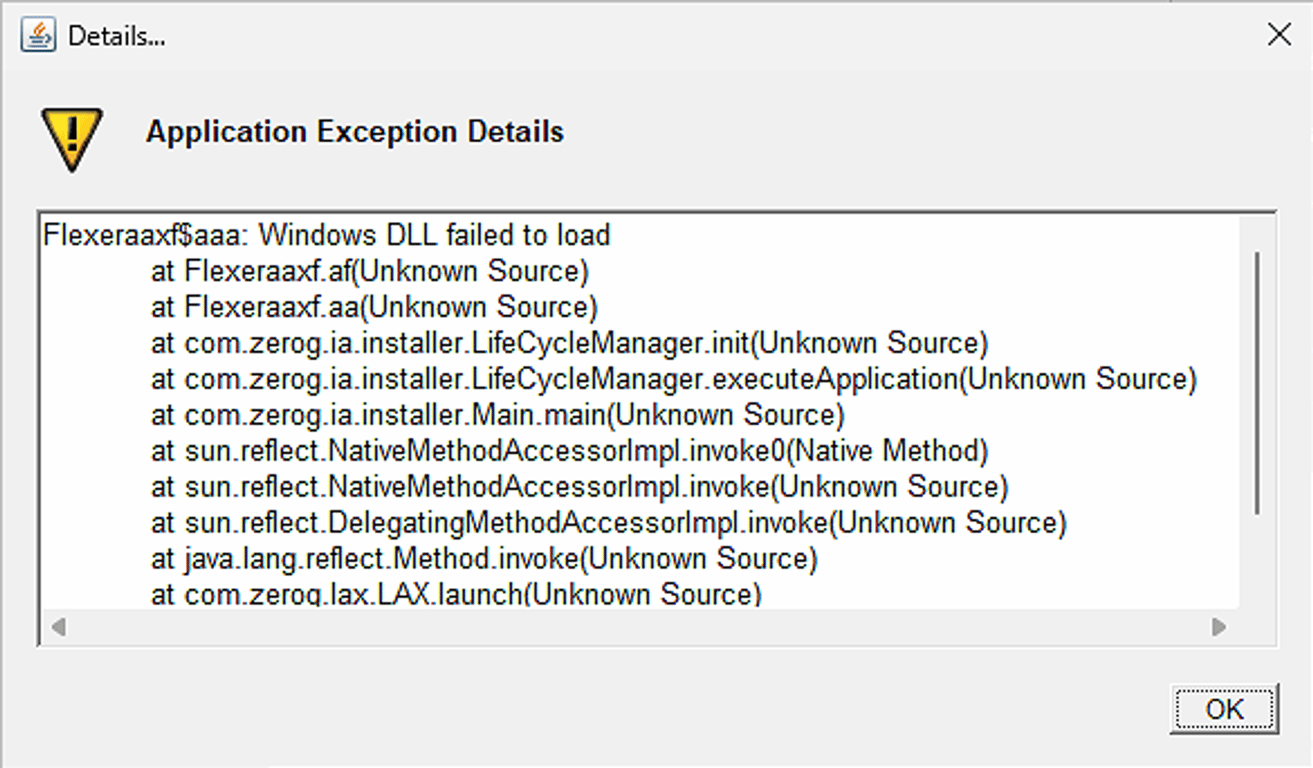
The Traveler Server up to and including version 12.0.2 FP1 has always been able to be installed on Windows 11 without any problems.
A search for Flexeraaxf$aaa returns a Page that describes the exact same error message - but not in the context of Domino or Traveler.
Attempted solutions
With the information from the page found during the search
As stated in the article I found, I tried installing Traveler from a command line (CMD with admin rights). To do this, the following environment variable should be set before calling TravelerSetup.exe:
set JAVA_TOOL_OPTIONS="-Dos.name=Windows Server 2019"
or
set JAVA_TOOL_OPTIONS="-Dos.name=Windows Server 2022"
Windows Server 2019/2022 are the versions officially supported by HCL.
Unfortunately, this did not work. The Traveler installer aborted with the same error message.
Opening a case at HCL
The answer from a case opened at HCL only provided the answer "Windows 11 is not a supported operating system". That's correct, but it didn't help.
Ask Daniel
I then asked Daniel by email and immediately received the link, which I had found myself (see above). So no further solution at first.
Final Solution
Due to a lack of good other ideas, I tested a bit more with the environment variable and then found a working solution.
set JAVA_TOOL_OPTIONS="-Dos.name=Windows 10"
It may be because when you specify "Windows Server 2022", a DLL is expected that is only present on Windows Servers.
The complete procedure:
- Open a CMD with admin rights in Windows 11.
- Enter set JAVA_TOOL_OPTIONS="-Dos.name=Windows 10" (is also displayed with set for verification).
- Go to the local folder where TravelerSetup.exe is stored
- Start TravelerSetup.exe from the command line
 Made with Bullet